The basics
Creating figures
ProPlot works by creating a proplot.figure.Figure subclass of
matplotlib.figure.Figure, an proplot.axes.Axes and proplot.axes.PlotAxes
subclass of matplotlib.axes.Axes, and determining subplot locations using
a proplot.gridspec.GridSpec subclass of matplotlib.gridspec.GridSpec
(for more on gridspecs, see this matplotlib tutorial).
To make plots with these classes, you must start with the figure or
subplots commands. These are modeled after the pyplot
commands of the same name. As in pyplot, subplots
creates a figure and a grid of subplots all at once, while figure
creates an empty figure that can be subsequently filled with subplots.
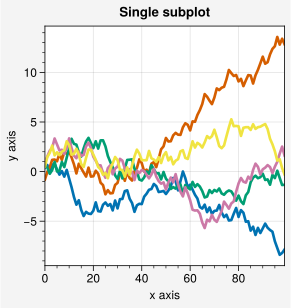
A minimal example with just one subplot is shown below.
Note
ProPlot changes the default rc['figure.facecolor'] so that the figure
backgrounds shown by the matplotlib backend are light gray (the
rc['savefig.facecolor'] applied to saved figures is still white). This can be
helpful when designing figures. ProPlot also controls the appearence of figures
in Jupyter notebooks using the new rc.inlinefmt setting, which is passed
to config_inline_backend on import. This imposes a
higher-quality default “inline” format
and disables the backend-specific settings InlineBackend.rc and
InlineBackend.print_figure_kwargs, ensuring that the figures you save
look like the figures displayed by the backend.
ProPlot also changes the default rc['savefig.format']
from PNG to PDF for the following reasons:
Vector graphic formats are infinitely scalable.
Vector graphic formats are preferred by academic journals.
Nearly all academic journals accept figures in the PDF format alongside the EPS format.
The EPS format is outdated and does not support transparent graphic elements.
In case you do need a raster format like PNG, ProPlot increases the
default rc['savefig.dpi'] to 1000 dots per inch, which is
recommended by most journals
as the minimum resolution for rasterized figures containing lines and text.
See the configuration section for how to change
these settings.
[1]:
# Single subplot
import numpy as np
import proplot as pplt
state = np.random.RandomState(51423)
data = 2 * (state.rand(100, 5) - 0.5).cumsum(axis=0)
fig = pplt.figure()
ax = fig.subplot()
ax.plot(data, lw=2)
ax.format(suptitle='Single subplot', xlabel='x axis', ylabel='y axis')
Creating subplots
Similar to matplotlib, subplots can be added to figures one-by-one
or all at once. Each subplot will be an instance of
proplot.axes.Axes. To add subplots all at once, use
proplot.figure.Figure.add_subplots (or its shorthand,
proplot.figure.Figure.subplots). Note that under the hood, subplots
simply calls figure followed by proplot.figure.Figure.add_subplots.
With no arguments,
add_subplotsreturns a subplot generated from a 1-row, 1-columnGridSpec.With
ncolsornrows,add_subplotsreturns a simple grid of subplots from aGridSpecwith matching geometry in either row-major or column-majororder.With
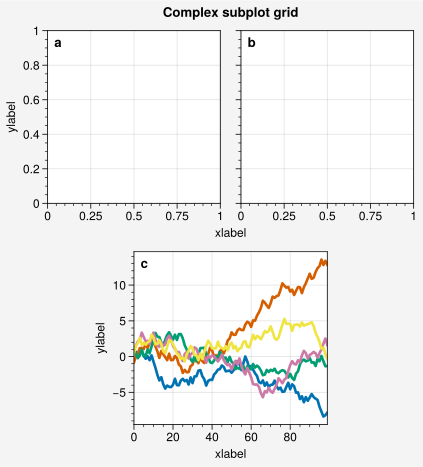
array,add_subplotsreturns an arbitrarily complex grid of subplots from aGridSpecwith matching geometry. Herearrayis a 2D array representing a “picture” of the subplot layout, where each unique integer indicates aGridSpecslot that is occupied by the corresponding subplot and0indicates an empty space.
To add subplots one-by-one, use the proplot.figure.Figure.add_subplot
command (or its shorthand proplot.figure.Figure.subplot).
With no arguments,
add_subplotreturns a subplot generated from a 1-row, 1-columnGridSpec.With integer arguments,
add_subplotreturns a subplot matching the correspondingGridSpecgeometry, as in matplotlib. Note that unlike matplotlib, the geometry must be compatible with the geometry implied by previousadd_subplotcalls.With a
SubplotSpecgenerated by indexing aproplot.gridspec.GridSpec,add_subplotreturns a subplot at the corresponding location. Note that unlike matplotlib, only onegridspecinstance can be used with each figure.
As in matplotlib, to save figures, use savefig (or its
shorthand proplot.figure.Figure.save). User paths in the filename are expanded
with os.path.expanduser. In the following examples, we add subplots to figures
with a variety of methods and then save the results to the home directory.
Warning
ProPlot employs automatic axis sharing by default. This lets
subplots in the same row or column share the same axis limits, scales, ticks,
and labels. This is often convenient, but may be annoying for some users. To
keep this feature turned off, simply change the default settings
with e.g. pplt.rc.update(share=False, span=False). See the
axis sharing section for details.
[2]:
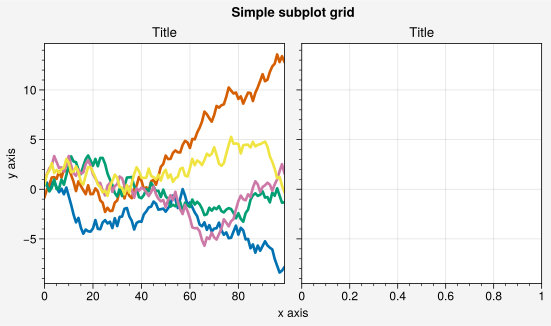
# Simple subplot grid
import numpy as np
import proplot as pplt
state = np.random.RandomState(51423)
data = 2 * (state.rand(100, 5) - 0.5).cumsum(axis=0)
fig = pplt.figure()
ax = fig.subplot(121)
ax.plot(data, lw=2)
ax = fig.subplot(122)
fig.format(
    suptitle='Simple subplot grid', title='Title',
    xlabel='x axis', ylabel='y axis'
)
fig.save('~/example1.png')
[3]:
# Complex grid
import numpy as np
import proplot as pplt
state = np.random.RandomState(51423)
data = 2 * (state.rand(100, 5) - 0.5).cumsum(axis=0)
array = [  # the "picture" (0 == nothing, 1 == subplot A, 2 == subplot B, etc.)
    [1, 1, 2, 2],
    [0, 3, 3, 0],
]
fig = pplt.figure(refwidth=1.8)
axs = fig.subplots(array)
axs.format(
    abc=True, abcloc='ul', suptitle='Complex subplot grid',
    xlabel='xlabel', ylabel='ylabel'
)
axs[2].plot(data, lw=2)
fig.save('~/example2.png')
[4]:
# Really complex grid
import numpy as np
import proplot as pplt
state = np.random.RandomState(51423)
data = 2 * (state.rand(100, 5) - 0.5).cumsum(axis=0)
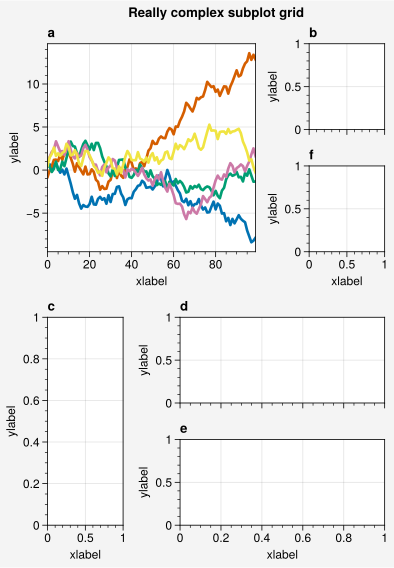
array = [  # the "picture" (1 == subplot A, 2 == subplot B, etc.)
    [1, 1, 2],
    [1, 1, 6],
    [3, 4, 4],
    [3, 5, 5],
]
fig, axs = pplt.subplots(array, figwidth=5, span=False)
axs.format(
    suptitle='Really complex subplot grid',
    xlabel='xlabel', ylabel='ylabel', abc=True
)
axs[0].plot(data, lw=2)
fig.save('~/example3.png')
[5]:
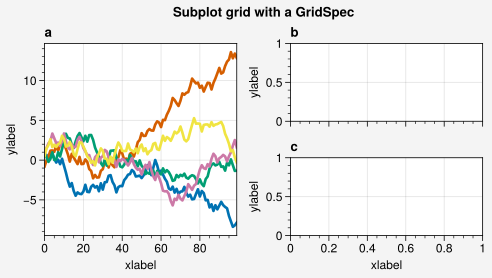
# Using a GridSpec
import numpy as np
import proplot as pplt
state = np.random.RandomState(51423)
data = 2 * (state.rand(100, 5) - 0.5).cumsum(axis=0)
gs = pplt.GridSpec(nrows=2, ncols=2, pad=1)
fig = pplt.figure(span=False, refwidth=2)
ax = fig.subplot(gs[:, 0])
ax.plot(data, lw=2)
ax = fig.subplot(gs[0, 1])
ax = fig.subplot(gs[1, 1])
fig.format(
    suptitle='Subplot grid with a GridSpec',
    xlabel='xlabel', ylabel='ylabel', abc=True
)
fig.save('~/example4.png')
Plotting stuff
Matplotlib has
two different interfaces:
an object-oriented interface and a MATLAB-style pyplot interface
(which uses the object-oriented interface internally). Plotting with ProPlot is just
like plotting with matplotlib’s object-oriented interface. ProPlot builds upon
the proplot.axes.Axes class with an intermediate proplot.axes.PlotAxes subclass.
This subclass adds several new plotting commands and adds new features to existing
commands. These additions do not change the usage or syntax of existing commands,
which means a shallow learning curve for the average matplotlib user.
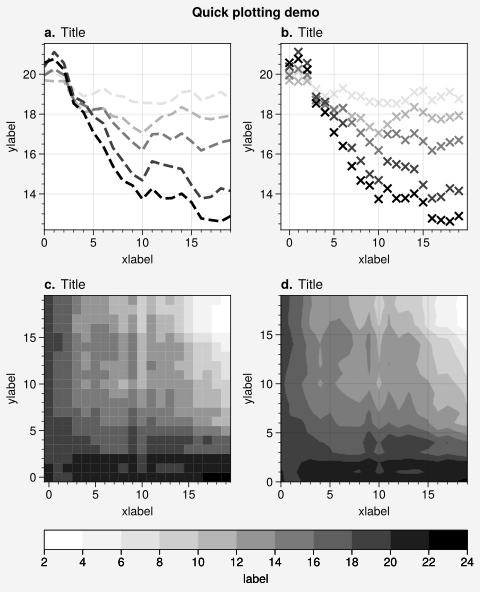
In the below example, we create a 4-panel figure with the familiar “1D” and “2D”
plot commands plot, scatter,
pcolormesh, and contourf.
See the 1D plotting and 2D plotting
sections for details on the features added by ProPlot.
[6]:
import proplot as pplt
import numpy as np

# Sample data
N = 20
state = np.random.RandomState(51423)
data = N + (state.rand(N, N) - 0.55).cumsum(axis=0).cumsum(axis=1)

# Example plots
cycle = pplt.Cycle('greys', left=0.2, N=5)
fig, axs = pplt.subplots(ncols=2, nrows=2, figwidth=5, share=False)
axs[0].plot(data[:, :5], linewidth=2, linestyle='--', cycle=cycle)
axs[1].scatter(data[:, :5], marker='x', cycle=cycle)
axs[2].pcolormesh(data, cmap='greys')
m = axs[3].contourf(data, cmap='greys')
axs.format(
    abc='a.', titleloc='l', title='Title',
    xlabel='xlabel', ylabel='ylabel', suptitle='Quick plotting demo'
)
fig.colorbar(m, loc='b', label='label')
[6]:
<matplotlib.colorbar.Colorbar at 0x7ff494c0daf0>
Formatting stuff
Every Axes returned by subplots has a
format method. This is your one-stop-shop for changing axes settings.
Keyword arguments passed to format are interpreted as follows:
Any keyword matching the name of an
rcsetting is used to update the axes. If the name has “dots”, you can omit them (e.g.,titleloc='left'changes therc['title.loc']property). See the configuration section for details.Valid keywords arguments are passed to
proplot.axes.CartesianAxes.format,proplot.axes.PolarAxes.format, orproplot.axes.GeoAxes.format. These change settings that are specific to the axes type. For example:To change the x axis bounds on a
CartesianAxes, use e.g.xlim=(0, 5).To change the radial bounds on a
PolarAxes, use e.g.rlim=(0, 10).To change the zonal bounds on a
GeoAxes, use e.g.lonlim=(-90, 0).
Remaining keyword arguments are passed to the base
proplot.axes.Axes.formatmethod.Axesis the base class for all other axes classes. This changes things that are the same for all axes types, like titles and a-b-c subplot labels (e.g.,title='Title').
The format methods let you use simple shorthands for changing all kinds
of settings at once, instead of one-liner setter methods like
ax.set_title() and ax.set_xlabel(). They are also integrated with
the Locator, Formatter,
and Scale constructor functions.
You can also call format for several subplots at once using
proplot.figure.Figure.format or proplot.gridspec.SubplotGrid.format (see below).
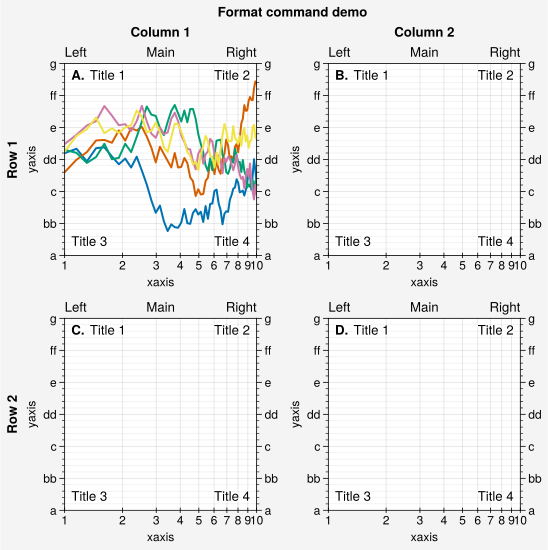
The below example shows the many different keyword arguments accepted by
format, and demonstrates how format can be used to succinctly and
efficiently customize your plots.
[7]:
import proplot as pplt
import numpy as np
fig, axs = pplt.subplots(ncols=2, nrows=2, refwidth=2, share=False, tight=True)
state = np.random.RandomState(51423)
N = 60
x = np.linspace(1, 10, N)
y = (state.rand(N, 5) - 0.5).cumsum(axis=0)
axs[0].plot(x, y, linewidth=1.5)
axs.format(
    suptitle='Format command demo',
    abc='A.', abcloc='ul',
    title='Main', ltitle='Left', rtitle='Right',  # different titles
    ultitle='Title 1', urtitle='Title 2', lltitle='Title 3', lrtitle='Title 4',
    toplabels=('Column 1', 'Column 2'),
    leftlabels=('Row 1', 'Row 2'),
    xlabel='xaxis', ylabel='yaxis',
    xscale='log',
    xlim=(1, 10), xticks=1,
    ylim=(-3, 3), yticks=pplt.arange(-3, 3),
    yticklabels=('a', 'bb', 'c', 'dd', 'e', 'ff', 'g'),
    ytickloc='both', yticklabelloc='both',
    xtickdir='inout', xtickminor=False, ygridminor=True,
)
Subplot grids
In matplotlib, subplots returns a 2D ndarray for
figures with more than one column and row, a 1D ndarray for single-column or
row figures, or an Axes for single-subplot figures. In ProPlot,
subplots returns a SubplotGrid that
unifies these possible return values:
SubplotGridpermits array-like 2D indexing, e.g.axs[1, 0]. Indexing theSubplotGridis similar to indexing aGridSpec. The result is aSubplotGridof subplots that occupy the indexedGridSpecslot(s).SubplotGridpermits list-like 1D indexing, e.g.axs[0]. The default order can be switched from row-major to column-major by passingorder='F'tosubplots.SubplotGridbehaves like a scalar when it is singleton. That is, if you make a single subplot withfig, ax = pplt.subplots(),ax[0].method(...)is equivalent toax.method(...).
If you added subplots one-by-one with subplot or
add_subplot, a SubplotGrid containing
the numbered subplots is available via the proplot.figure.Figure.subplotgrid
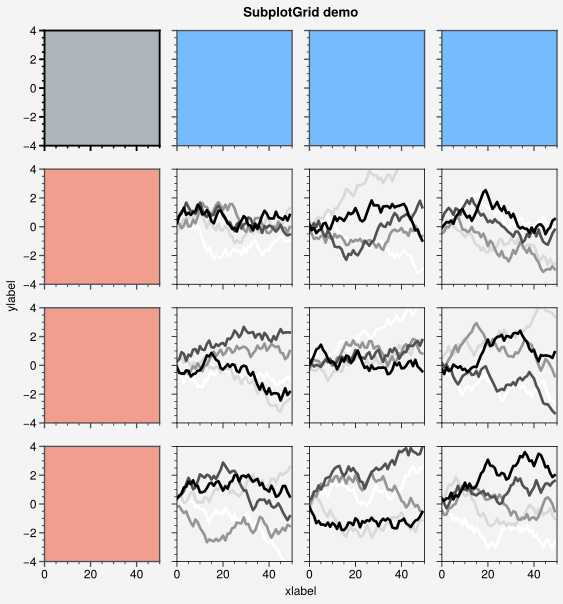
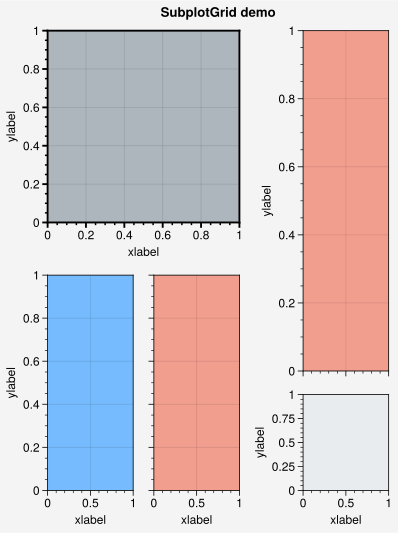
property. SubplotGrid is especially useful because it lets you
call format, colorbar, legend, panel, inset, and the various
twin axis commands simultaneously for all subplots in the grid. In the below
example, we use format command on the grid
returned by subplots to format several subplots all at once.
[8]:
import proplot as pplt
import numpy as np
state = np.random.RandomState(51423)

# Selected subplots in a simple grid
fig, axs = pplt.subplots(ncols=4, nrows=4, refwidth=1.2, span=True)
axs.format(xlabel='xlabel', ylabel='ylabel', suptitle='SubplotGrid demo')
axs.format(grid=False, xlim=(0, 50), ylim=(-4, 4))
axs[:, 0].format(facecolor='blush', edgecolor='gray7', linewidth=1)  # eauivalent
axs[:, 0].format(fc='blush', ec='gray7', lw=1)
axs[0, :].format(fc='sky blue', ec='gray7', lw=1)
axs[0].format(ec='black', fc='gray5', lw=1.4)
axs[1:, 1:].format(fc='gray1')
for ax in axs[1:, 1:]:
    ax.plot((state.rand(50, 5) - 0.5).cumsum(axis=0), cycle='Grays', lw=2)

# Selected subplots in a complex grid
fig = pplt.figure(refwidth=2, span=False)
axs = fig.subplots([[1, 1, 2], [3, 4, 2], [3, 4, 5]], hratios=[2, 1, 1])
axs.format(xlabel='xlabel', ylabel='ylabel', suptitle='SubplotGrid demo')
axs[0].format(ec='black', fc='gray5', lw=1.4)
axs[1, 1:].format(fc='blush')
axs[1, :1].format(fc='sky blue')
axs[-1, -1].format(fc='gray2', grid=False)
Settings and styles
A dictionary-like object named rc is created when you import
ProPlot. rc is similar to the matplotlib rcParams
dictionary, but can be used to change both matplotlib settings and
ProPlot settings. The matplotlib-specific settings are
stored in rc_matplotlib (our name for matplotlib.rcParams) and
the ProPlot-specific settings are stored in rc_proplot.
ProPlot also includes a rc.style setting that can be used to
switch between matplotlib stylesheets.
See the configuration section for details.
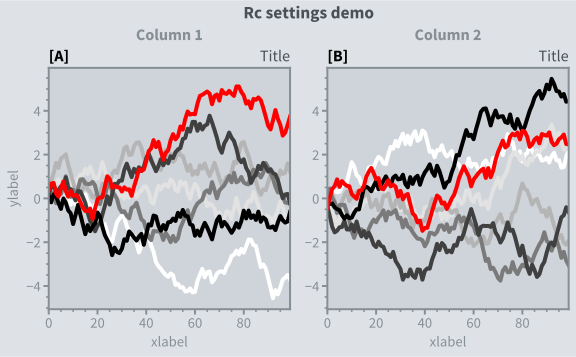
To modify a setting for just one subplot or figure, you can pass it to
proplot.axes.Axes.format or proplot.figure.Figure.format. To temporarily
modify setting(s) for a block of code, use context.
To modify setting(s) for the entire python session, just assign it to the
rc dictionary or use update.
To reset everything to the default state, use reset.
See the below example.
[9]:
import proplot as pplt
import numpy as np

# Update global settings in several different ways
pplt.rc.metacolor = 'gray6'
pplt.rc.update({'fontname': 'Source Sans Pro', 'fontsize': 11})
pplt.rc['figure.facecolor'] = 'gray3'
pplt.rc.axesfacecolor = 'gray4'
# pplt.rc.save()  # save the current settings to ~/.proplotrc

# Apply settings to figure with context()
with pplt.rc.context({'suptitle.size': 13}, toplabelcolor='gray6', metawidth=1.5):
    fig = pplt.figure(figwidth=6, sharey='limits', span=False)
    axs = fig.subplots(ncols=2)

# Plot lines with a custom cycler
N, M = 100, 7
state = np.random.RandomState(51423)
values = np.arange(1, M + 1)
cycle = pplt.get_colors('grays', M - 1) + ['red']
for i, ax in enumerate(axs):
    data = np.cumsum(state.rand(N, M) - 0.5, axis=0)
    lines = ax.plot(data, linewidth=3, cycle=cycle)

# Apply settings to axes with format()
axs.format(
    grid=False, xlabel='xlabel', ylabel='ylabel',
    toplabels=('Column 1', 'Column 2'),
    suptitle='Rc settings demo',
    suptitlecolor='gray7',
    abc='[A]', abcloc='l',
    title='Title', titleloc='r', titlecolor='gray7'
)

# Reset persistent modifications from head of cell
pplt.rc.reset()
[10]:
import proplot as pplt
import numpy as np
# pplt.rc.style = 'style'  # set the style everywhere

# Sample data
state = np.random.RandomState(51423)
data = state.rand(10, 5)

# Set up figure
fig, axs = pplt.subplots(ncols=2, nrows=2, span=False, share=False)
axs.format(suptitle='Stylesheets demo')
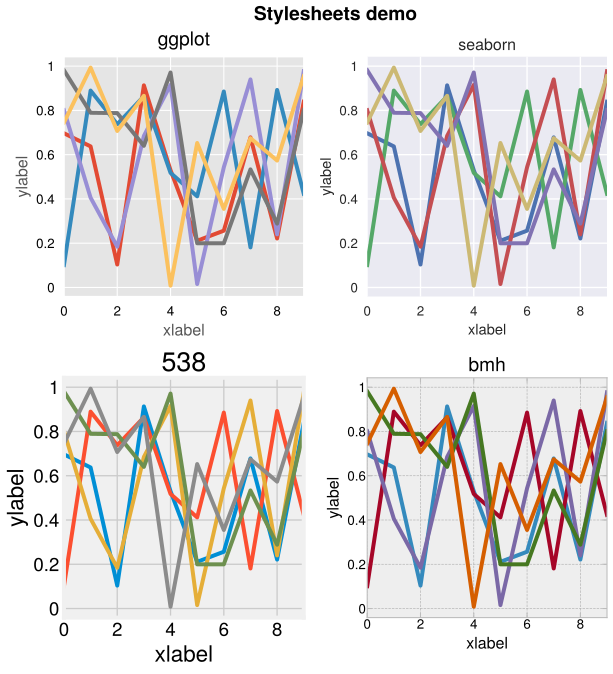
styles = ('ggplot', 'seaborn', '538', 'bmh')

# Apply different styles to different axes with format()
for ax, style in zip(axs, styles):
    ax.format(style=style, xlabel='xlabel', ylabel='ylabel', title=style)
    ax.plot(data, linewidth=3)