2D plotting
Proplot adds several new features to matplotlib’s
plotting commands using the intermediate PlotAxes subclass.
For the most part, these additions represent a superset of matplotlib – if
you are not interested, you can use the plotting commands just like you always
have. This section documents the features added for 2D plotting commands
like contour, pcolor,
and imshow.
Standardized arguments
Data arguments passed to 2D plot commands are now uniformly
standardized. For each command, you can optionally omit the x and
y coordinates, in which case they are inferred from the data
(see xarray and pandas integration). If coordinates
are string labels, they are converted to indices and tick labels using
FixedLocator and IndexFormatter.
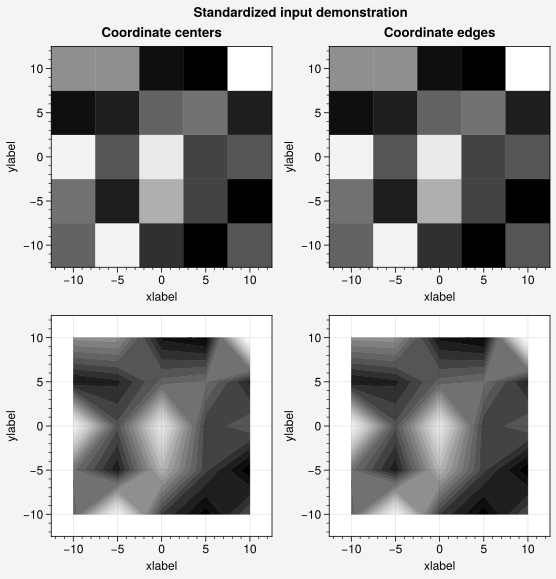
Coordinate centers passed to commands like pcolor and
pcolormesh are automatically converted to edges using
edges or edges2d, and coordinate edges
passed to commands like contour and
contourf are automatically converted to centers
(notice the locations of the rectangle edges in the pcolor plots below).
All positional arguments can also be optionally specified as keyword
arguments (see the individual command documentation).
Note
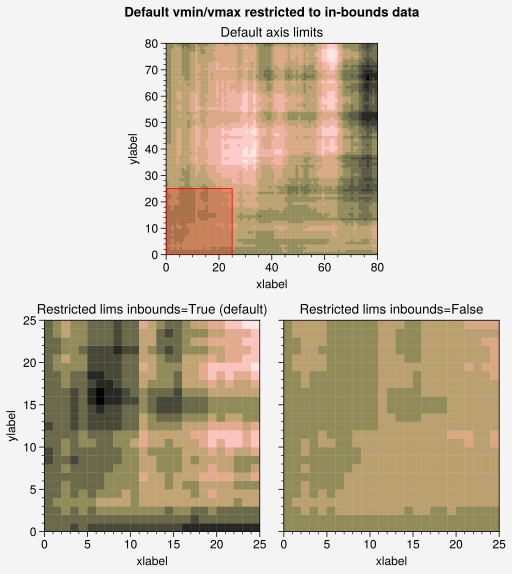
By default, when proplot selects the default colormap normalization
range, it ignores data outside the x or y axis limits
if they were previously fixed by set_xlim or
set_ylim (or, equivalently, by passing xlim or
ylim to proplot.axes.CartesianAxes.format). This can be useful if you
wish to restrict the view within a large dataset. To disable this feature,
pass inbounds=False to the plotting command or set rc['cmap.inbounds']
to False (see also the rc['axes.inbounds'] setting and the
user guide).
[1]:
import proplot as pplt
import numpy as np

# Sample data
state = np.random.RandomState(51423)
x = y = np.array([-10, -5, 0, 5, 10])
xedges = pplt.edges(x)
yedges = pplt.edges(y)
data = state.rand(y.size, x.size)  # "center" coordinates
lim = (np.min(xedges), np.max(xedges))

with pplt.rc.context({'cmap': 'Grays', 'cmap.levels': 21}):
    # Figure
    fig = pplt.figure(refwidth=2.3, share=False)
    axs = fig.subplots(ncols=2, nrows=2)
    axs.format(
        xlabel='xlabel', ylabel='ylabel',
        xlim=lim, ylim=lim, xlocator=5, ylocator=5,
        suptitle='Standardized input demonstration',
        toplabels=('Coordinate centers', 'Coordinate edges'),
    )

    # Plot using both centers and edges as coordinates
    axs[0].pcolormesh(x, y, data)
    axs[1].pcolormesh(xedges, yedges, data)
    axs[2].contourf(x, y, data)
    axs[3].contourf(xedges, yedges, data)
[2]:
import proplot as pplt
import numpy as np

# Sample data
cmap = 'turku_r'
state = np.random.RandomState(51423)
N = 80
x = y = np.arange(N + 1)
data = 10 + (state.normal(0, 3, size=(N, N))).cumsum(axis=0).cumsum(axis=1)
xlim = ylim = (0, 25)

# Plot the data
fig, axs = pplt.subplots(
    [[0, 1, 1, 0], [2, 2, 3, 3]], wratios=(1.3, 1, 1, 1.3), span=False, refwidth=2.2,
)
axs[0].fill_between(
    xlim, *ylim, zorder=3, edgecolor='red', facecolor=pplt.set_alpha('red', 0.2),
)
for i, ax in enumerate(axs):
    inbounds = i == 1
    title = f'Restricted lims inbounds={inbounds}'
    title += ' (default)' if inbounds else ''
    ax.format(
        xlim=(None if i == 0 else xlim),
        ylim=(None if i == 0 else ylim),
        title=('Default axis limits' if i == 0 else title),
    )
    ax.pcolor(x, y, data, cmap=cmap, inbounds=inbounds)
fig.format(
    xlabel='xlabel',
    ylabel='ylabel',
    suptitle='Default vmin/vmax restricted to in-bounds data'
)
Pandas and xarray integration
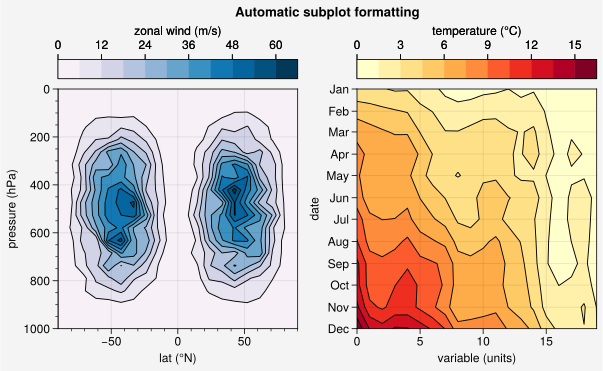
The PlotAxes plotting commands recognize pandas and
xarray data structures. If you omit x and y coordinates, the
plotting commands try to infer them from the pandas.DataFrame or
xarray.DataArray. If you did not explicitly set the x or y axis label
or legend or colorbar label(s), the plotting commands
try to retrieve them from the pandas.DataFrame or xarray.DataArray.
The plotting commands also recognize pint.Quantity structures and apply
unit string labels with formatting specified by rc.unitformat = 'L'.
These features restore some of the convenience you get with the builtin
pandas and xarray plotting functions. They are also optional –
installation of pandas and xarray are not required to use proplot. The
automatic labels can be disabled by setting rc.autoformat to False
or by passing autoformat=False to any plotting command.
Note
For every plotting command, you can pass a Dataset, DataFrame,
or dict to the data keyword with strings as data arguments instead of arrays
– just like matplotlib. For example, ax.plot('y', data=dataset) and
ax.plot(y='y', data=dataset) are translated to ax.plot(dataset['y']).
This is the preferred input style for most seaborn plotting commands.
Also, if you pass a pint.Quantity or DataArray
containing a pint.Quantity, proplot will automatically call
setup_matplotlib so that the axes become unit-aware.
[3]:
import xarray as xr
import numpy as np
import pandas as pd

# DataArray
state = np.random.RandomState(51423)
linspace = np.linspace(0, np.pi, 20)
data = 50 * state.normal(1, 0.2, size=(20, 20)) * (
    np.sin(linspace * 2) ** 2
    * np.cos(linspace + np.pi / 2)[:, None] ** 2
)
lat = xr.DataArray(
    np.linspace(-90, 90, 20),
    dims=('lat',),
    attrs={'units': '\N{DEGREE SIGN}N'}
)
plev = xr.DataArray(
    np.linspace(1000, 0, 20),
    dims=('plev',),
    attrs={'long_name': 'pressure', 'units': 'hPa'}
)
da = xr.DataArray(
    data,
    name='u',
    dims=('plev', 'lat'),
    coords={'plev': plev, 'lat': lat},
    attrs={'long_name': 'zonal wind', 'units': 'm/s'}
)

# DataFrame
data = state.rand(12, 20)
df = pd.DataFrame(
    (data - 0.4).cumsum(axis=0).cumsum(axis=1)[::1, ::-1],
    index=pd.date_range('2000-01', '2000-12', freq='MS')
)
df.name = 'temperature (\N{DEGREE SIGN}C)'
df.index.name = 'date'
df.columns.name = 'variable (units)'
[4]:
import proplot as pplt
fig = pplt.figure(refwidth=2.5, share=False, suptitle='Automatic subplot formatting')

# Plot DataArray
cmap = pplt.Colormap('PuBu', left=0.05)
ax = fig.subplot(121, yreverse=True)
ax.contourf(da, cmap=cmap, colorbar='t', lw=0.7, ec='k')

# Plot DataFrame
ax = fig.subplot(122, yreverse=True)
ax.contourf(df, cmap='YlOrRd', colorbar='t', lw=0.7, ec='k')
ax.format(xtickminor=False, yformatter='%b', ytickminor=False)
Changing the colormap
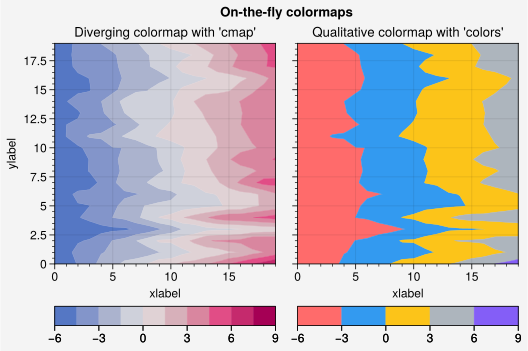
It is often useful to create ContinuousColormaps
on-the-fly, without explicitly calling the Colormap
constructor function. You can do so using the cmap
and cmap_kw keywords, available with most PlotAxes 2D plot
commands. For example, to create and apply a monochromatic colormap, you can use
cmap='color_name' (see the colormaps section for more info).
You can also create on-the-fly “qualitative” DiscreteColormaps
by passing lists of colors to the keyword c, color, or colors.
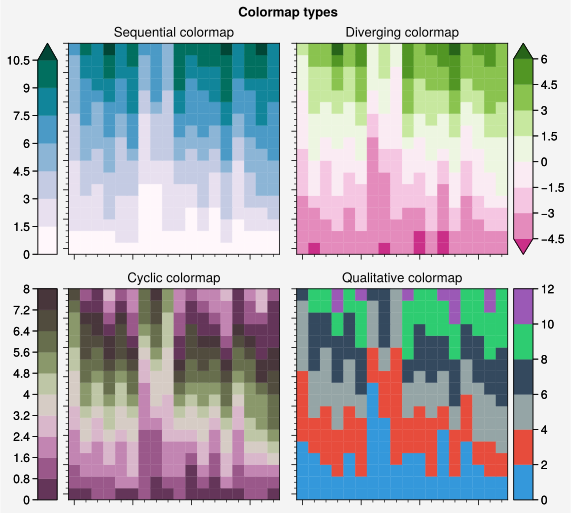
To apply the default sequential, diverging, cyclic,
or qualitative colormap, pass sequential=True,
diverging=True, cyclic=True, or qualitative=True to any plotting
command. The default colormaps of each type are specified with the proplot
settings rc['cmap.sequential'] = 'Fire', rc['cmap.diverging'] = 'BuRd', rc['cmap.cyclic'] = 'twilight', and
rc['cmap.qualitative'] = 'colorblind10'. Unless otherwise specified, the sequential colormap
is used with the default (linear) normalizer when data is strictly positive
or negative, and the diverging colormap is used when the data limits or
colormap levels cross zero (see below).
[5]:
import proplot as pplt
import numpy as np

# Sample data
N = 18
state = np.random.RandomState(51423)
data = np.cumsum(state.rand(N, N), axis=0)

# Custom defaults of each type
pplt.rc['cmap.sequential'] = 'PuBuGn'
pplt.rc['cmap.diverging'] = 'PiYG'
pplt.rc['cmap.cyclic'] = 'bamO'
pplt.rc['cmap.qualitative'] = 'flatui'

# Make plots. Note the default behavior is sequential=True or diverging=True
# depending on whether data contains negative values (see below).
fig = pplt.figure(refwidth=2.2, span=False, suptitle='Colormap types')
axs = fig.subplots(ncols=2, nrows=2)
axs.format(xformatter='none', yformatter='none')
axs[0].pcolor(data, sequential=True, colorbar='l', extend='max')
axs[1].pcolor(data - 5, diverging=True, colorbar='r', extend='both')
axs[2].pcolor(data % 8, cyclic=True, colorbar='l')
axs[3].pcolor(data, levels=pplt.arange(0, 12, 2), qualitative=True, colorbar='r')
types = ('sequential', 'diverging', 'cyclic', 'qualitative')
for ax, typ in zip(axs, types):
    ax.format(title=typ.title() + ' colormap')
pplt.rc.reset()
[6]:
import proplot as pplt
import numpy as np

# Sample data
N = 20
state = np.random.RandomState(51423)
data = np.cumsum(state.rand(N, N), axis=1) - 6

# Continuous "diverging" colormap
fig = pplt.figure(refwidth=2.3, spanx=False)
ax = fig.subplot(121, title="Diverging colormap with 'cmap'", xlabel='xlabel')
ax.contourf(
    data,
    norm='div',
    cmap=('cobalt', 'white', 'violet red'),
    cmap_kw={'space': 'hsl', 'cut': 0.15},
    colorbar='b',
)

# Discrete "qualitative" colormap
ax = fig.subplot(122, title="Qualitative colormap with 'colors'")
ax.contourf(
    data,
    levels=pplt.arange(-6, 9, 3),
    colors=['red5', 'blue5', 'yellow5', 'gray5', 'violet5'],
    colorbar='b',
)
fig.format(xlabel='xlabel', ylabel='ylabel', suptitle='On-the-fly colormaps')
Changing the normalizer
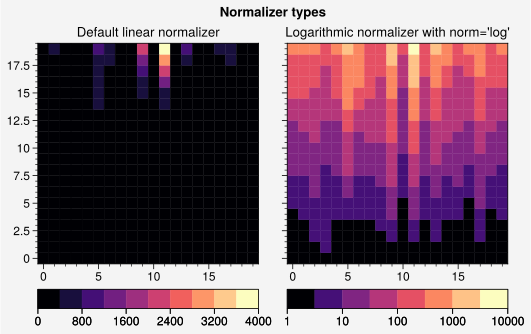
Matplotlib colormap “normalizers”
translate raw data values into normalized colormap indices. In proplot,
you can select the normalizer from its “registered” name using the
Norm constructor function. You
can also build a normalizer on-the-fly using the norm and norm_kw keywords,
available with most PlotAxes 2D plot commands.
If you want to work with the normalizer classes directly, they are available in
the top-level namespace (e.g., norm=pplt.LogNorm(...) is allowed). To
explicitly set the normalization range, you can pass the usual vmin and vmax
keywords to the plotting command. See below for more
details on colormap normalization in proplot.
[7]:
import proplot as pplt
import numpy as np

# Sample data
N = 20
state = np.random.RandomState(51423)
data = 11 ** (0.25 * np.cumsum(state.rand(N, N), axis=0))

# Create figure
gs = pplt.GridSpec(ncols=2)
fig = pplt.figure(refwidth=2.3, span=False, suptitle='Normalizer types')

# Different normalizers
ax = fig.subplot(gs[0], title='Default linear normalizer')
ax.pcolormesh(data, cmap='magma', colorbar='b')
ax = fig.subplot(gs[1], title="Logarithmic normalizer with norm='log'")
ax.pcolormesh(data, cmap='magma', norm='log', colorbar='b')
[7]:
<matplotlib.collections.QuadMesh at 0x7fedbb600e20>
Special normalizers
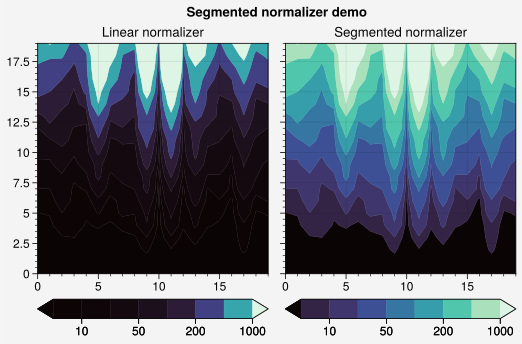
Proplot includes two new “continuous” normalizers.
SegmentedNorm provides even color gradations with respect to
index for an arbitrary monotonically increasing or decreasing list of levels. This is
automatically applied if you pass unevenly spaced levels to a plotting command, or
it can be manually applied using e.g. norm='segmented'. This can be useful for
datasets with unusual statistical distributions or spanning many orders of magnitudes.
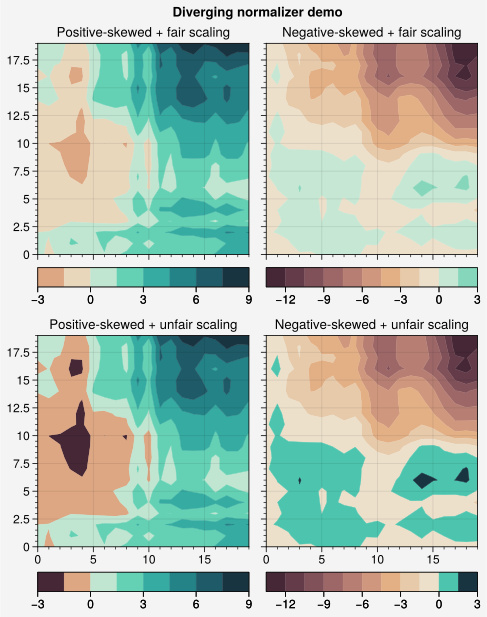
The DivergingNorm normalizer ensures that colormap midpoints lie
on some central data value (usually 0), even if vmin, vmax, or levels
are asymmetric with respect to the central value. This is automatically applied
if your data contains negative and positive values (see below),
or it can be manually applied using e.g. diverging=True or norm='diverging'.
It can also be configured to scale colors “fairly” or “unfairly”:
With fair scaling (the default), gradations on either side of the midpoint have equal intensity. If
vminandvmaxare not symmetric about zero, the most intense colormap colors on one side of the midpoint will be truncated.With unfair scaling, gradations on either side of the midpoint are warped so that the full range of colormap colors is always traversed. This configuration should be used with care, as it may lead you to misinterpret your data.
The below examples demonstrate how these normalizers affect the interpretation of different datasets.
[8]:
import proplot as pplt
import numpy as np

# Sample data
state = np.random.RandomState(51423)
data = 11 ** (2 * state.rand(20, 20).cumsum(axis=0) / 7)

# Linear segmented norm
fig, axs = pplt.subplots(ncols=2, refwidth=2.4)
fig.format(suptitle='Segmented normalizer demo')
ticks = [5, 10, 20, 50, 100, 200, 500, 1000]
for ax, norm in zip(axs, ('linear', 'segmented')):
    m = ax.contourf(
        data, levels=ticks, extend='both',
        cmap='Mako', norm=norm,
        colorbar='b', colorbar_kw={'ticks': ticks},
    )
    ax.format(title=norm.title() + ' normalizer')
[9]:
import proplot as pplt
import numpy as np

# Sample data
state = np.random.RandomState(51423)
data1 = (state.rand(20, 20) - 0.485).cumsum(axis=1).cumsum(axis=0)
data2 = (state.rand(20, 20) - 0.515).cumsum(axis=0).cumsum(axis=1)

# Figure
fig, axs = pplt.subplots(nrows=2, ncols=2, refwidth=2.2, order='F')
axs.format(suptitle='Diverging normalizer demo')
cmap = pplt.Colormap('DryWet', cut=0.1)

# Diverging norms
i = 0
for data, mode, fair in zip(
    (data1, data2), ('positive', 'negative'), ('fair', 'unfair'),
):
    for fair in ('fair', 'unfair'):
        norm = pplt.Norm('diverging', fair=(fair == 'fair'))
        ax = axs[i]
        m = ax.contourf(data, cmap=cmap, norm=norm)
        ax.colorbar(m, loc='b')
        ax.format(title=f'{mode.title()}-skewed + {fair} scaling')
        i += 1
Discrete levels
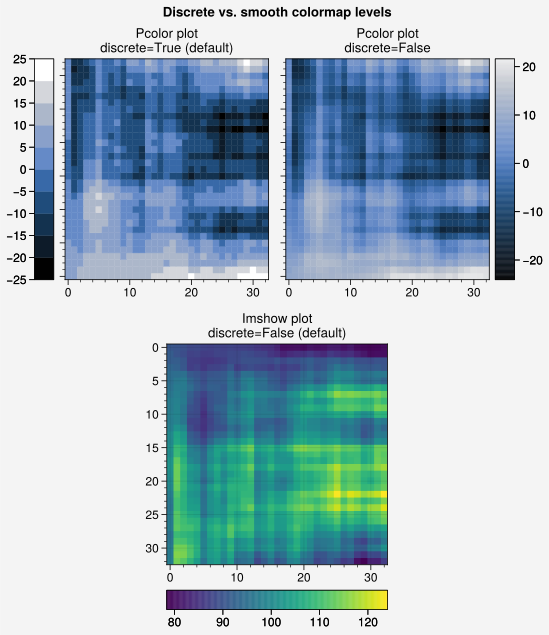
By default, proplot uses DiscreteNorm to “discretize”
the possible colormap colors for contour and pseudocolor plotting commands
(e.g., contourf, pcolor).
This is analogous to matplotlib.colors.BoundaryNorm, except
DiscreteNorm can be paired with arbitrary
continuous normalizers specified by norm (see above).
Discrete color levels can help readers discern exact numeric values and
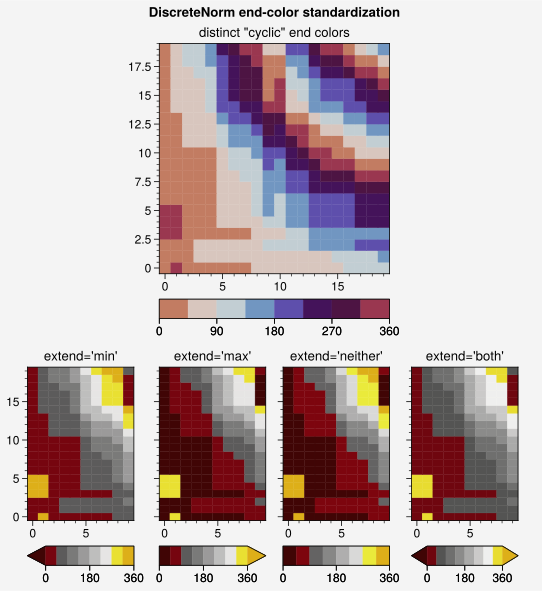
tend to reveal qualitative structure in the data. DiscreteNorm
also repairs the colormap end-colors by ensuring the following conditions are met:
All colormaps always span the entire color range regardless of the
extendparameter.Cyclic colormaps always have distinct color levels on either end of the colorbar.
To explicitly toggle discrete levels on or off, change rc['cmap.discrete']
or pass discrete=False or discrete=True to any plotting command
that accepts a cmap argument. The level edges or centers used with
DiscreteNorm can be explicitly specified using the levels and
values keywords (the arange and edges commands
are useful for generating level lists). You can also pass an integer to these
keywords (or to the N keyword) to automatically generate approximately that many
level edges or centers at “nice” intervals. The algorithm used to generate levels
is similar to matplotlib’s algorithm for selecting contour levels. The default
number of levels is controlled by rc['cmap.levels'], and the level selection
is constrainted by the keywords vmin, vmax, locator, and locator_kw – for
example, vmin=100 ensures the minimum level is greater than or equal to 100,
and locator=5 ensures a level step size of 5 (see this section for more on locators). You can also use the keywords negative,
positive, or symmetric to ensure that your levels are strictly negative,
positive, or symmetric about zero, or use the nozero keyword to remove
the zero level (useful for single-color contour plots).
[10]:
import proplot as pplt
import numpy as np

# Sample data
state = np.random.RandomState(51423)
data = 10 + (state.normal(0, 1, size=(33, 33))).cumsum(axis=0).cumsum(axis=1)

# Figure
fig, axs = pplt.subplots([[1, 1, 2, 2], [0, 3, 3, 0]], ref=3, refwidth=2.3)
axs.format(yformatter='none', suptitle='Discrete vs. smooth colormap levels')

# Pcolor
axs[0].pcolor(data, cmap='oslo', norm='div', colorbar='l')
axs[0].set_title('Pcolor plot\ndiscrete=True (default)')
axs[1].pcolor(data, discrete=False, cmap='oslo', norm='div', colorbar='r')
axs[1].set_title('Pcolor plot\ndiscrete=False')

# Imshow
data = 100 - data
m = axs[2].imshow(data, cmap='viridis', colorbar='b')
axs[2].format(title='Imshow plot\ndiscrete=False (default)', yformatter='auto')
[11]:
import proplot as pplt
import numpy as np

# Sample data
state = np.random.RandomState(51423)
data = (20 * (state.rand(20, 20) - 0.4).cumsum(axis=0).cumsum(axis=1)) % 360
levels = pplt.arange(0, 360, 45)

# Figure
gs = pplt.GridSpec(nrows=2, ncols=4, hratios=(1.5, 1))
fig = pplt.figure(refwidth=2.4, right=2)
fig.format(suptitle='DiscreteNorm end-color standardization')

# Cyclic colorbar with distinct end colors
cmap = pplt.Colormap('twilight', shift=-90)
ax = fig.subplot(gs[0, 1:3], title='distinct "cyclic" end colors')
ax.pcolormesh(
    data, cmap=cmap, levels=levels,
    colorbar='b', colorbar_kw={'locator': 90},
)

# Colorbars with different extend values
for i, extend in enumerate(('min', 'max', 'neither', 'both')):
    ax = fig.subplot(gs[1, i], title=f'extend={extend!r}')
    ax.pcolormesh(
        data[:, :10], levels=levels, cmap='oxy',
        extend=extend, colorbar='b', colorbar_kw={'locator': 180}
    )
Auto normalization
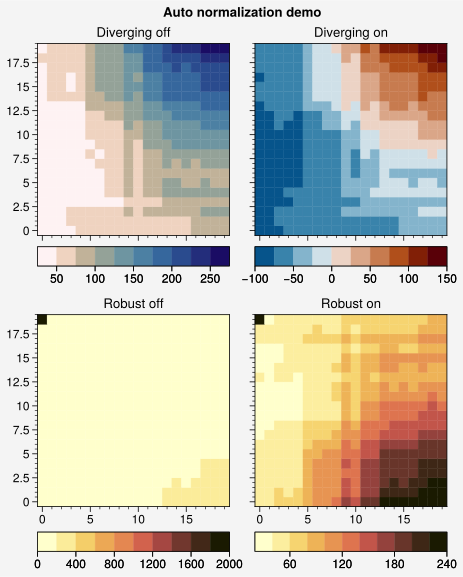
By default, colormaps are normalized to span from roughly the minimum
data value to the maximum data value. However in the presence of outliers,
this is not desirable. Proplot adds the robust keyword to change this
behavior, inspired by the xarray keyword
of the same name. Passing robust=True to a PlotAxes
2D plot command will limit the default colormap normalization between
the 2nd and 98th data percentiles. This range can be customized by passing
an integer to robust (e.g. robust=90 limits the normalization range
between the 5th and 95th percentiles) or by passing a 2-tuple to robust
(e.g. robust=(0, 90) limits the normalization range between the
data minimum and the 90th percentile). This can be turned on persistently
by setting rc['cmap.robust'] to True.
Additionally, similar to xarray,
proplot can automatically detect “diverging” datasets. By default, the
PlotAxes 2D plot commands will apply the diverging colormap
rc['cmap.diverging'] = 'BuRd' (rather than rc['cmap.sequential'] = 'Fire') and the diverging
normalizer DivergingNorm (rather than Normalize
– see above) if the following conditions are met:
If discrete levels are enabled (see above) and the level list includes at least 2 negative and 2 positive values.
If discrete levels are disabled (see above) and the normalization limits
vminandvmaxare negative and positive.A colormap was not explicitly passed, or a colormap was passed but it matches the name of a known diverging colormap.
The automatic detection of “diverging” datasets can be disabled by
setting rc['cmap.autodiverging'] to False.
[12]:
import proplot as pplt
import numpy as np
N = 20
state = np.random.RandomState(51423)
data = N * 2 + (state.rand(N, N) - 0.45).cumsum(axis=0).cumsum(axis=1) * 10
fig, axs = pplt.subplots(
    nrows=2, ncols=2, refwidth=2,
    suptitle='Auto normalization demo'
)

# Auto diverging
pplt.rc['cmap.sequential'] = 'lapaz_r'
pplt.rc['cmap.diverging'] = 'vik'
for i, ax in enumerate(axs[:2]):
    ax.pcolor(data - i * N * 6, colorbar='b')
    ax.format(title='Diverging ' + ('on' if i else 'off'))

# Auto range
pplt.rc['cmap.sequential'] = 'lajolla'
data = data[::-1, :]
data[-1, 0] = 2e3
for i, ax in enumerate(axs[2:]):
    ax.pcolor(data, robust=bool(i), colorbar='b')
    ax.format(title='Robust ' + ('on' if i else 'off'))
pplt.rc.reset()
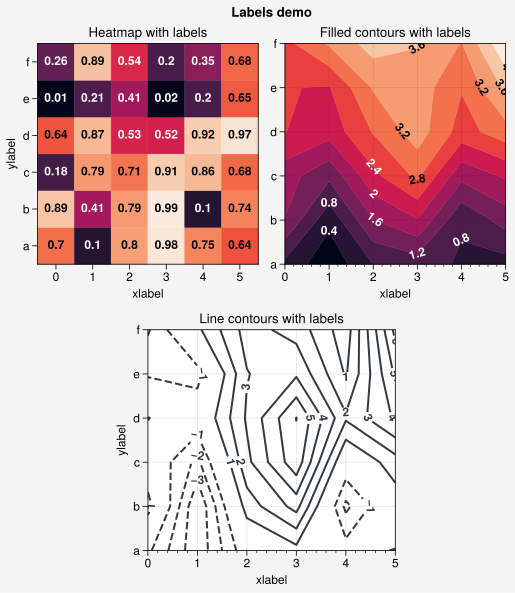
Quick labels
You can now quickly add labels to contour,
contourf, pcolor,
pcolormesh, and heatmap,
plots by passing labels=True to the plotting command. The
label text is colored black or white depending on the luminance of the underlying
grid box or filled contour (see the section on colorspaces).
Contour labels are drawn with clabel and grid box
labels are drawn with text. You can pass keyword arguments
to these functions by passing a dictionary to labels_kw, and you can
change the label precision using the precision keyword. See the plotting
command documentation for details.
[13]:
import proplot as pplt
import pandas as pd
import numpy as np

# Sample data
state = np.random.RandomState(51423)
data = state.rand(6, 6)
data = pd.DataFrame(data, index=pd.Index(['a', 'b', 'c', 'd', 'e', 'f']))

# Figure
fig, axs = pplt.subplots(
    [[1, 1, 2, 2], [0, 3, 3, 0]],
    refwidth=2.3, share='labels', span=False,
)
axs.format(xlabel='xlabel', ylabel='ylabel', suptitle='Labels demo')

# Heatmap with labeled boxes
ax = axs[0]
m = ax.heatmap(
    data, cmap='rocket',
    labels=True, precision=2, labels_kw={'weight': 'bold'}
)
ax.format(title='Heatmap with labels')

# Filled contours with labels
ax = axs[1]
m = ax.contourf(
    data.cumsum(axis=0), cmap='rocket',
    labels=True, labels_kw={'weight': 'bold'}
)
ax.format(title='Filled contours with labels')

# Line contours with labels and no zero level
data = 5 * (data - 0.45).cumsum(axis=0) - 2
ax = axs[2]
ax.contour(
    data, nozero=True, color='gray8',
    labels=True, labels_kw={'weight': 'bold'}
)
ax.format(title='Line contours with labels')
Heatmap plots
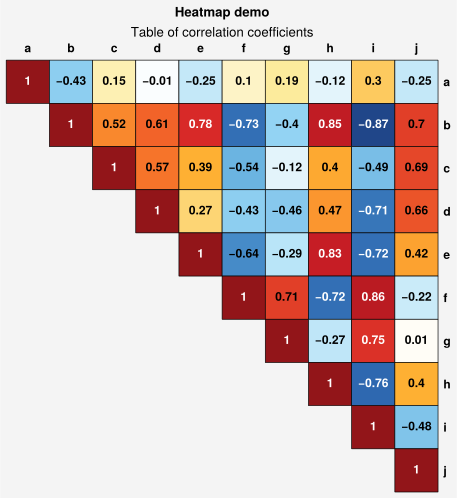
The heatmap command can be used to draw “heatmaps” of
2-dimensional data. This is a convenience function equivalent to
pcolormesh, except the axes are configured with settings
suitable for heatmaps: fixed aspect ratios (ensuring “square” grid boxes), no
gridlines, no minor ticks, and major ticks at the center of each box. Among other
things, this is useful for displaying covariance and correlation matrices, as shown
below. heatmap should generally only be used with
CartesianAxes.
[14]:
import proplot as pplt
import numpy as np
import pandas as pd

# Covariance data
state = np.random.RandomState(51423)
data = state.normal(size=(10, 10)).cumsum(axis=0)
data = (data - data.mean(axis=0)) / data.std(axis=0)
data = (data.T @ data) / data.shape[0]
data[np.tril_indices(data.shape[0], -1)] = np.nan  # fill half with empty boxes
data = pd.DataFrame(data, columns=list('abcdefghij'), index=list('abcdefghij'))

# Covariance matrix plot
fig, ax = pplt.subplots(refwidth=4.5)
m = ax.heatmap(
    data, cmap='ColdHot', vmin=-1, vmax=1, N=100, lw=0.5, ec='k',
    labels=True, precision=2, labels_kw={'weight': 'bold'},
    clip_on=False,  # turn off clipping so box edges are not cut in half
)
ax.format(
    suptitle='Heatmap demo', title='Table of correlation coefficients',
    xloc='top', yloc='right', yreverse=True, ticklabelweight='bold',
    alpha=0, linewidth=0, tickpad=4,
)